AiSearch

How Konspekt works

Every screen of the app in order: what it does and how to use it. The screenshots come from version 0.15 and show made-up meetings.

Recording and transcription

First launch

The app is ready to go right away. The speech model downloads once in the background while you look around; after that, recording and transcription need no internet.

How to

  1. Install Konspekt and open it.
  2. A progress bar on the left shows the speech models downloading: about 720 MB, once. The notes model loads later, when it is first needed.
  3. You can drop existing recordings into the window right away: each one becomes its own meeting with a transcript.
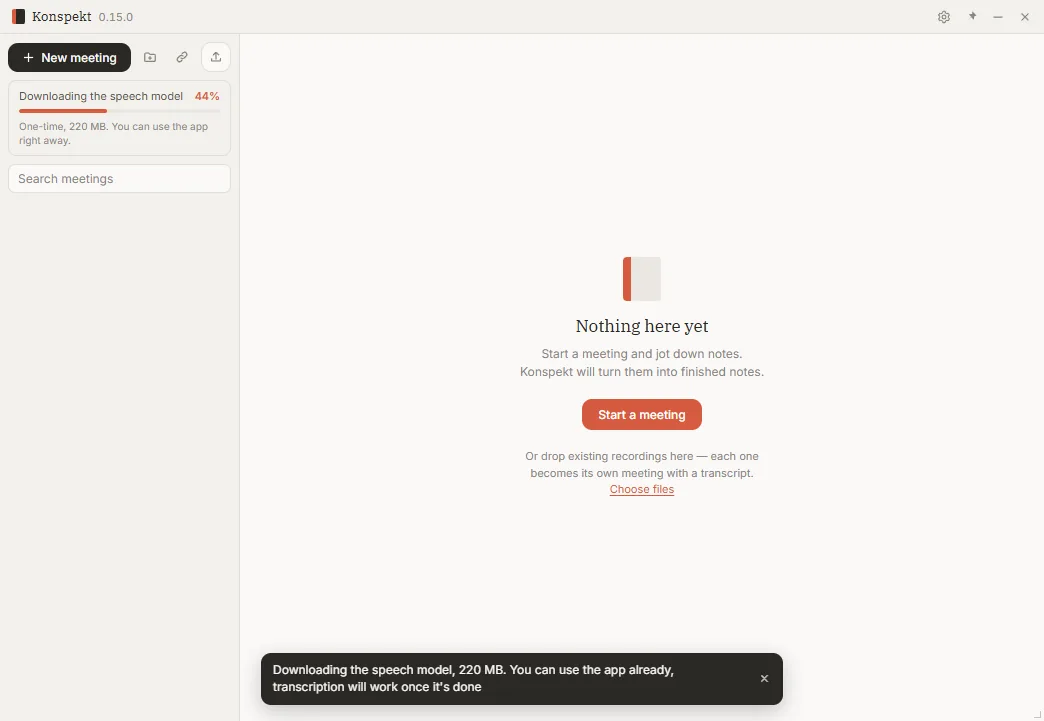
Konspekt on first launch: an empty meeting list while the speech model downloads

Record a meeting without a bot

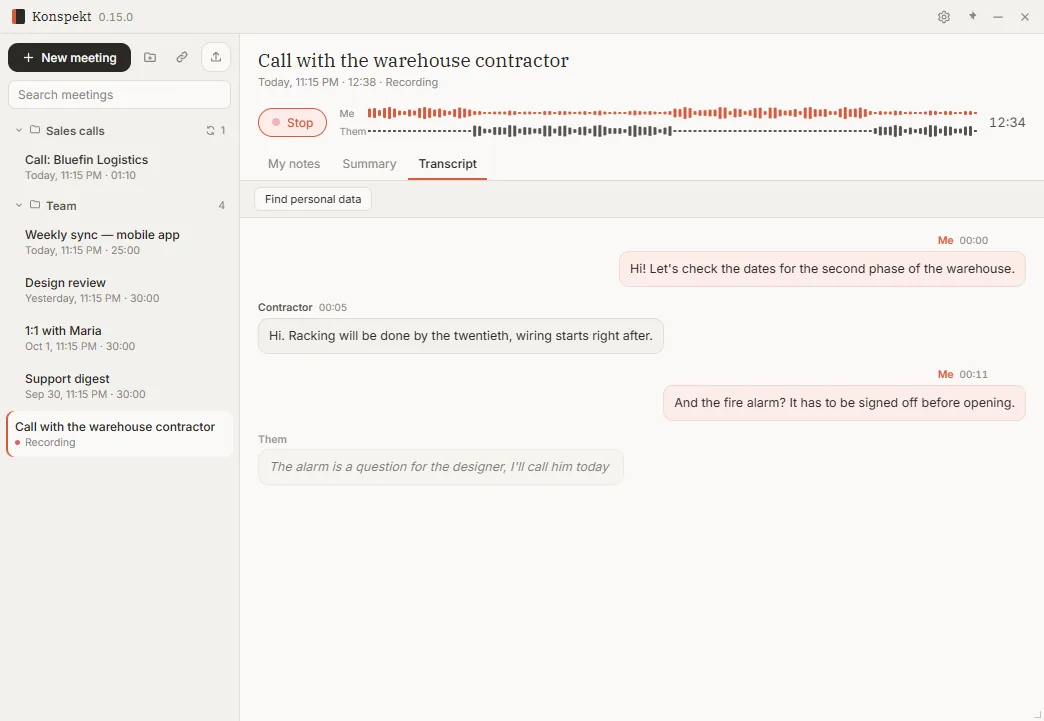
Konspekt records both sides of the conversation: your microphone and the sound of the call in Zoom, Teams, Google Meet or any other app. No bot joins the call, and the text appears while you talk.

How to

  1. Click “New meeting”, then “Start recording”.
  2. The wave above the tabs shows who is talking: “Me” is your microphone, “Them” is the computer sound.
  3. The “Transcript” tab fills in during the conversation. When you are done, click “Stop”.
A call being recorded: the sound wave and a transcript appearing as people talk

Recording reminder

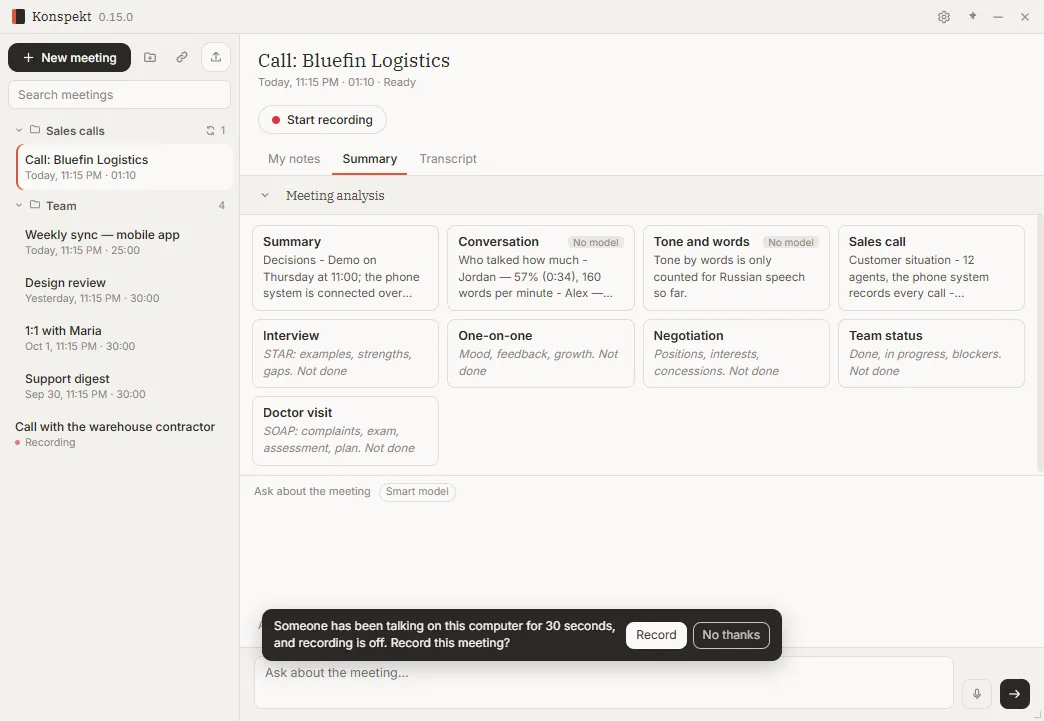
Forgot to press record? Konspekt notices that a conversation has been going on for half a minute and offers to record it.

How to

  1. A question appears at the bottom of the window: “Record this meeting?”
  2. “Record” starts recording, “No thanks” hides the question.
Konspekt offers to record a conversation already going on the computer

Transcript with speaker identification

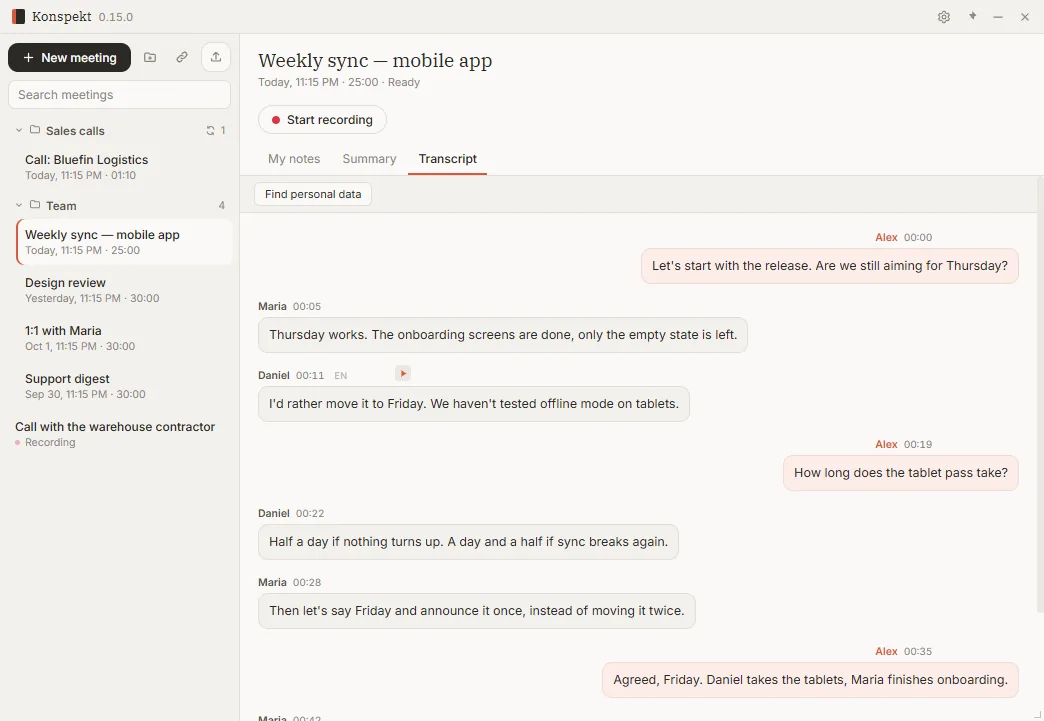
Every line is labeled with who said it and when, like a chat. Name a speaker once, and Konspekt recognizes their voice in later meetings.

How to

  1. Open a meeting and the “Transcript” tab.
  2. Your lines are on the right, the others’ on the left, each with the time from the start of the meeting.
  3. Click a name to rename the speaker.
  4. “Replay this line” plays exactly that piece of the recording, handy for checking a disputed moment.
Meeting transcript with speaker identification: each line labeled with a name and time

Notes and answers

Meeting notes

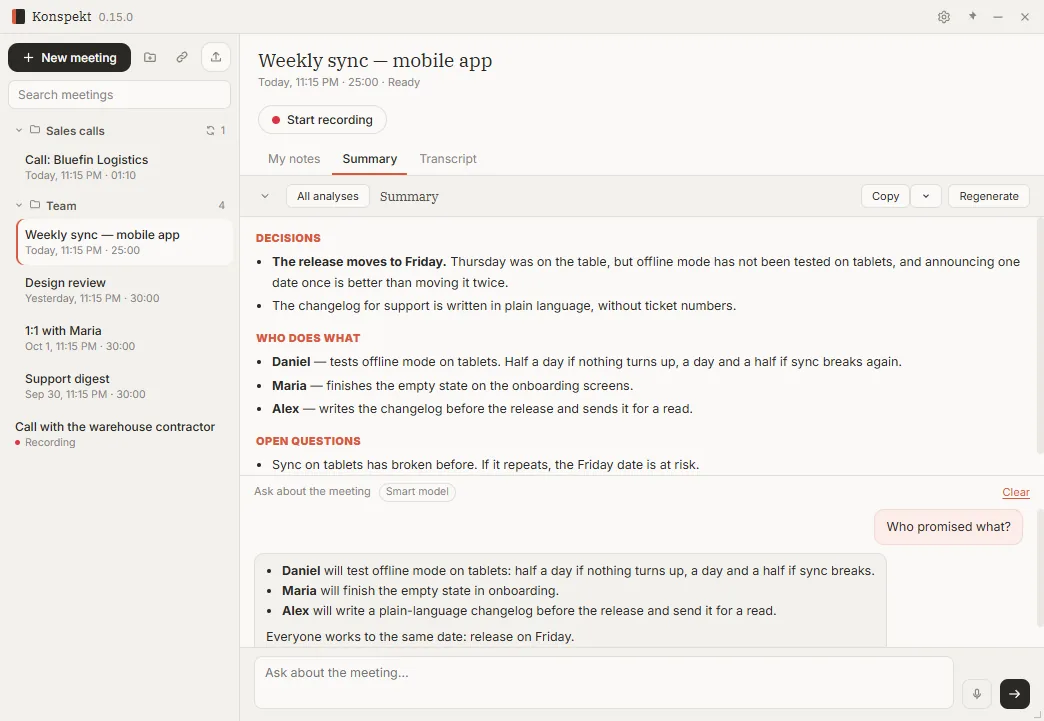
Instead of an hour of recording, one page: what was decided, who does what and which questions are still open. Notes come in the language of the meeting and are written by a model on your own computer.

How to

  1. Open a meeting, the “Summary” tab.
  2. “Copy” takes the whole summary; the menu next to it can copy without personal data or send to Telegram.
  3. The meeting went on? Click “Regenerate”.
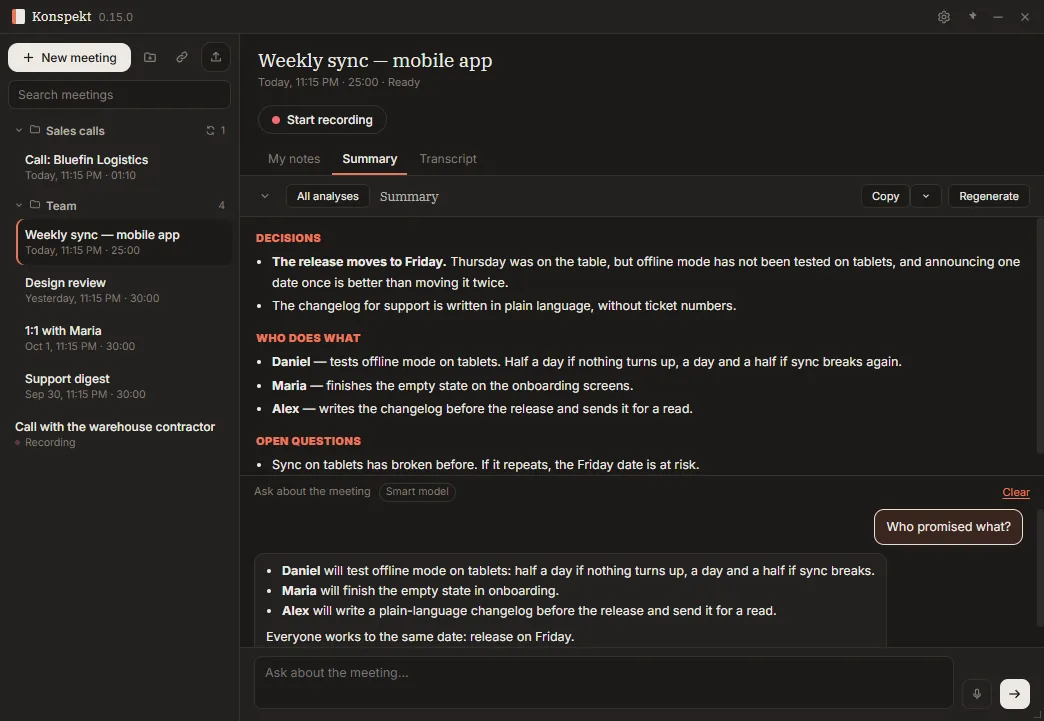
Meeting notes: decisions, who does what and open questions

Ask about the meeting

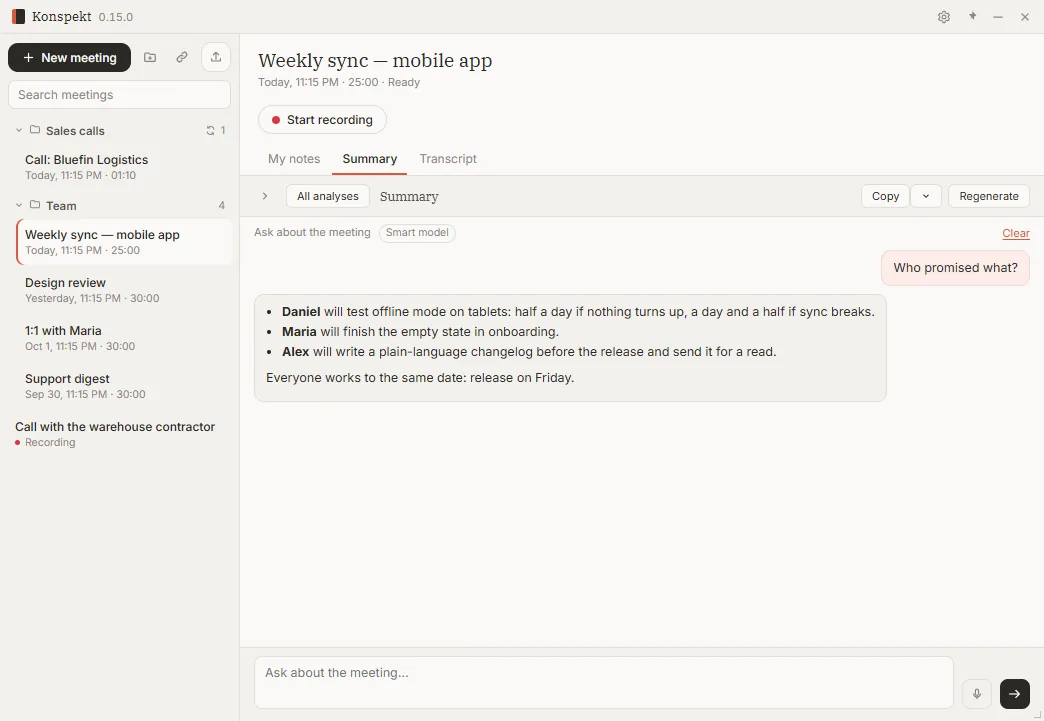
Ask a meeting a question in your own words: who promised what, what you agreed on, what is still unresolved. The answer comes from the text of that meeting.

How to

  1. Type your question in “Ask about the meeting…” at the bottom and press the arrow.
  2. The model that answers is shown above the chat; click it to switch models.
  3. “Clear” starts the conversation over.
The question “Who promised what?” and the answer based on the meeting

Analyses for different meetings

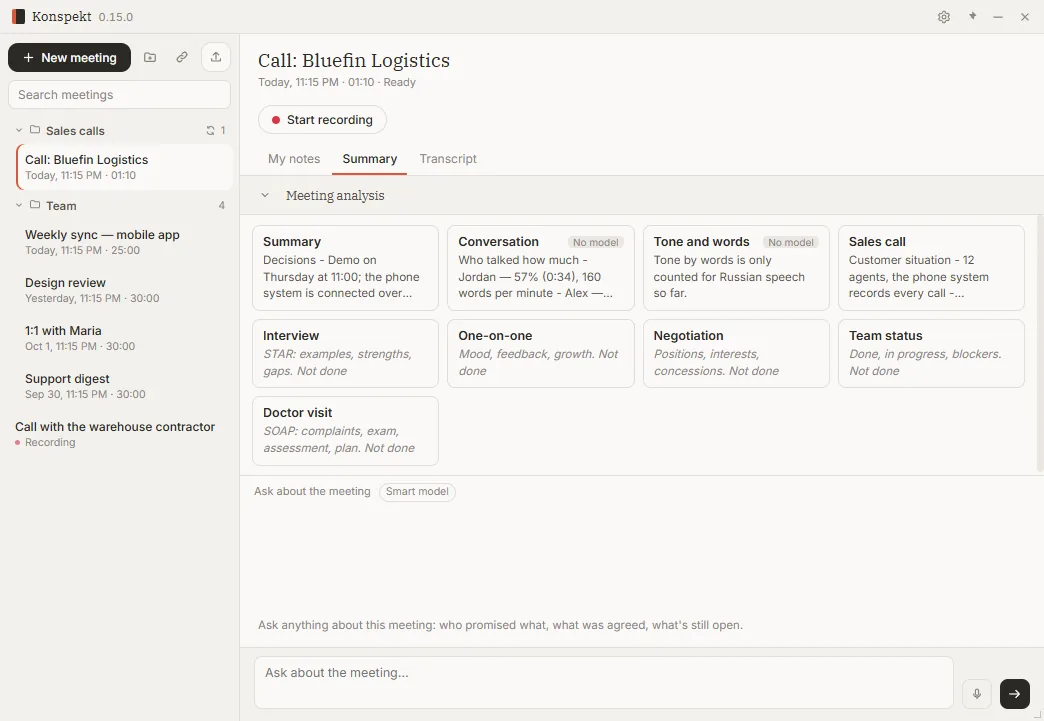
Beyond the summary, break a meeting down for a purpose: a job interview (STAR), a one-on-one, a negotiation (Harvard method), a team status update or a doctor visit (SOAP). Each analysis is kept separately and never overwrites another.

How to

  1. On the “Summary” tab, click “All analyses” to open a grid of cards.
  2. Click a “Not done” card to run it, or a finished one to read it in full.
  3. If the meeting grew after the analysis, the card is marked “Outdated”.
Grid of meeting analyses: summary, conversation, interview, one-on-one and others

Who talked how much

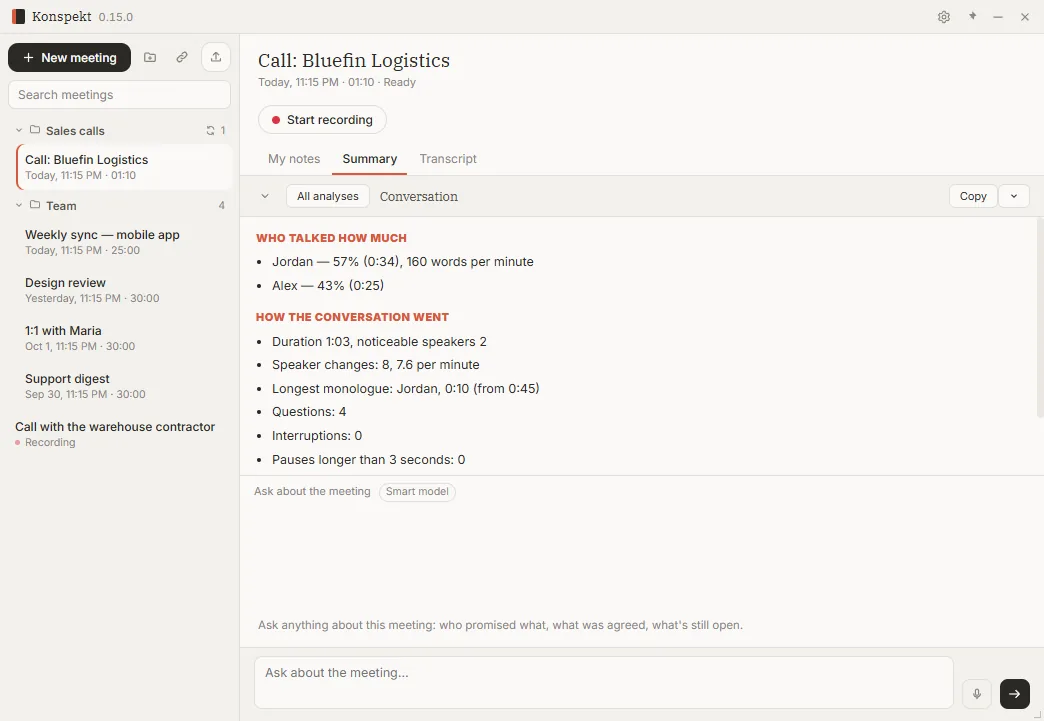
Conversation numbers are ready at once, no model needed: each person’s share of talk time and pace, the longest monologue, questions, interruptions and pauses.

How to

  1. Open “Summary” → “All analyses” → “Conversation”.
  2. It is a hint based on words and timing, not a judgement of a person.
Conversation stats: talk time share, speaking pace, interruptions and pauses

Dictation

Dictate into any app

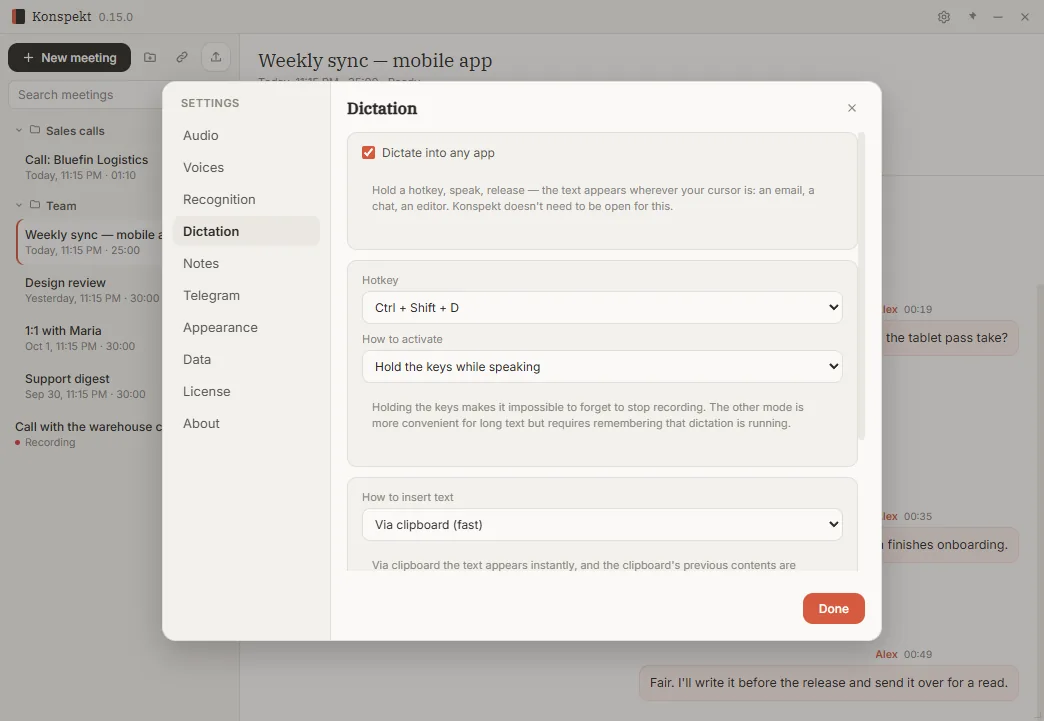
The same speech model types for you in any program: an email, a chat, a document. It runs on your computer, and nothing you dictate is stored.

How to

  1. Open “Settings” → “Dictation” and turn on “Dictate into any app”.
  2. Hold Ctrl + Shift + D (you can change the shortcut), speak and release: the text appears where your cursor is.
  3. Prefer to press once to start and once to stop? Pick that mode instead, it is easier for long text.
  4. Dictation is unavailable while a meeting is being recorded: there is one speech model.

Dictation is free, no license needed →

Dictation settings: keyboard shortcut and how the text is inserted

Find and organize

Search every meeting at once

Search runs through the text of all your meetings: it finds a phrase even if you do not remember which meeting it was in. Folders keep projects apart.

How to

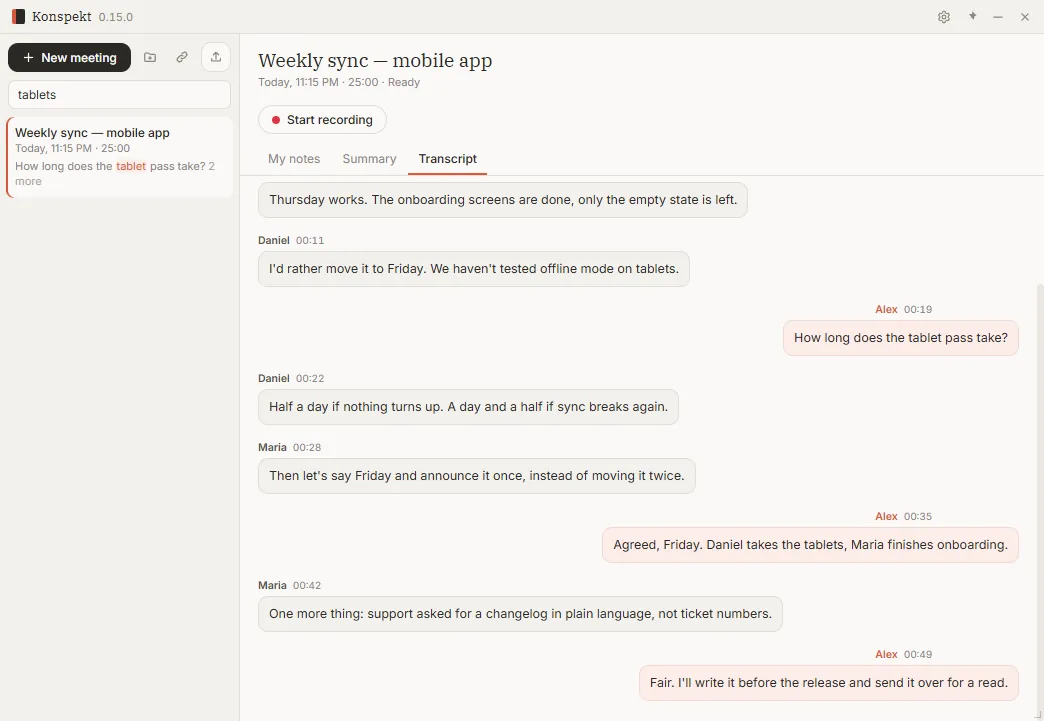
  1. Type a word in “Search meetings”: the match is highlighted right in the list.
  2. The folder button next to “New meeting” creates a folder; “+” on a folder starts a meeting right inside it.
  3. Drag a meeting into a folder, or right-click it and choose “Move to folder”.
Searching all meetings: the found word highlighted in a transcript

Find personal data before you share

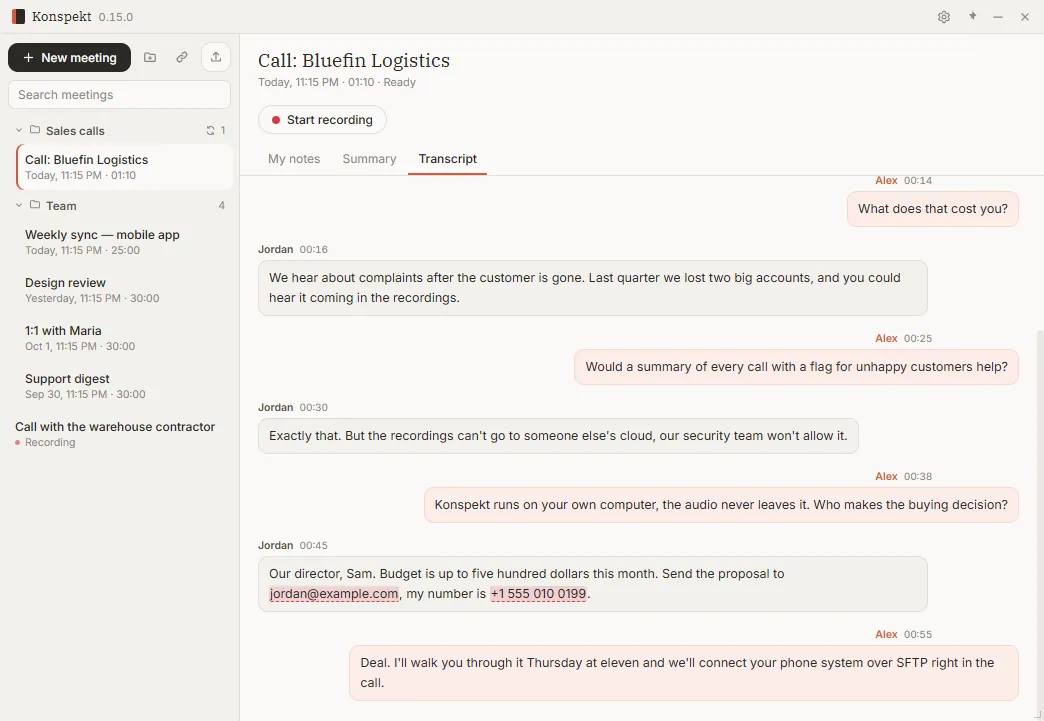
Before forwarding a transcript, see what should not go further: email addresses, phone numbers with a country code, card numbers and IBANs. Card numbers and IBANs are checked by checksum, so ordinary numbers are not flagged.

How to

  1. On the “Transcript” tab, click “Find personal data”: matches get highlighted; click again to clear.
  2. The copy menu of the summary has “Without personal data”: numbers are replaced with labels.
Personal data highlighted in a transcript before sharing it

Telegram, models and settings

Your own Telegram bot

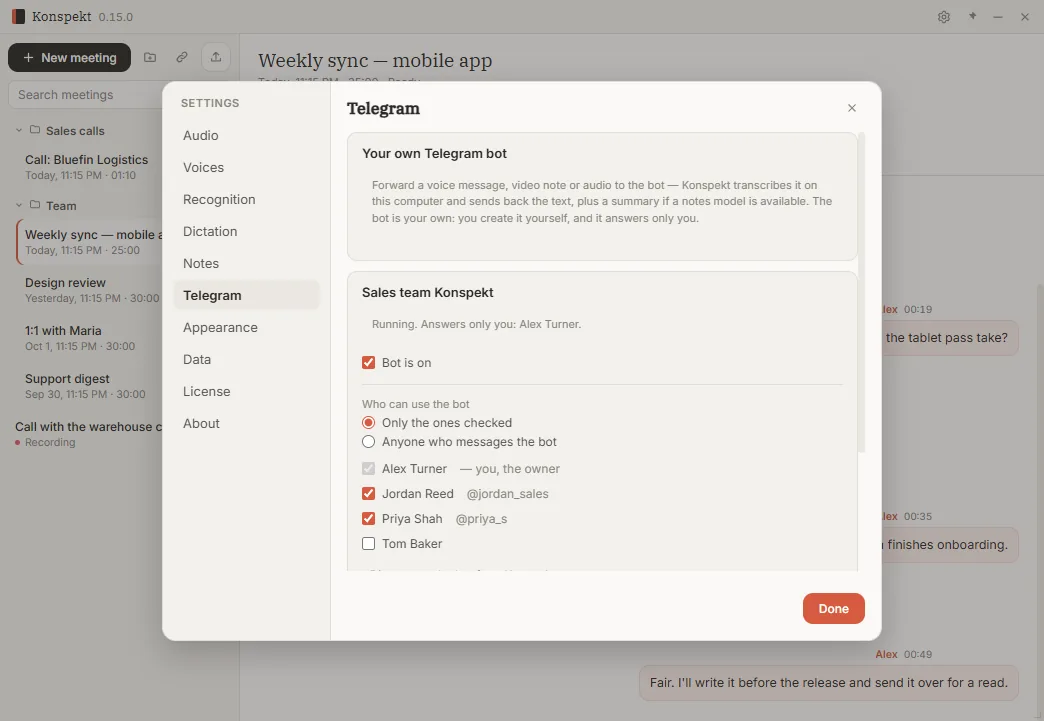
Forward a voice message, video note, audio file or link to your bot: Konspekt transcribes it on your computer and sends back the text, plus notes if a notes model is set up. The bot is yours and answers only the people you allow.

How to

  1. Create a bot with @BotFather and paste its token into “Settings” → “Telegram”.
  2. To make the bot obey only you, send it the code shown in the settings.
  3. The bot works while Konspekt is running. Telegram does not give bots files larger than 20 MB.
Telegram bot settings in Konspekt: who can use the bot

Notes model or your own server

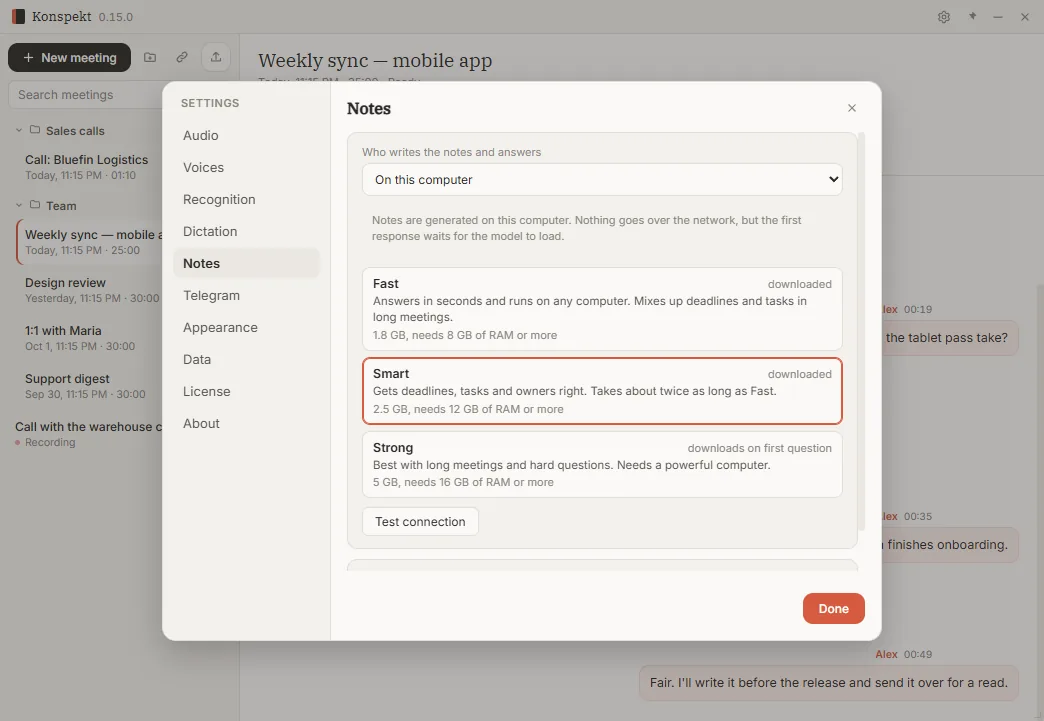
Notes, analyses and answers are written by a model on your computer. There are three, for different hardware: you see how big each is and how much memory it needs.

How to

  1. Open “Settings” → “Notes”.
  2. “Fast” (1.8 GB, 8 GB of RAM) answers in seconds. “Smart” (2.5 GB, 12 GB of RAM) names deadlines and owners more accurately. “Strong” (5 GB, 16 GB of RAM) is for long meetings.
  3. The chosen model downloads on first use. Or connect your own OpenAI-compatible server: address, key and model name.
Choosing a notes model: Fast, Smart or Strong

License

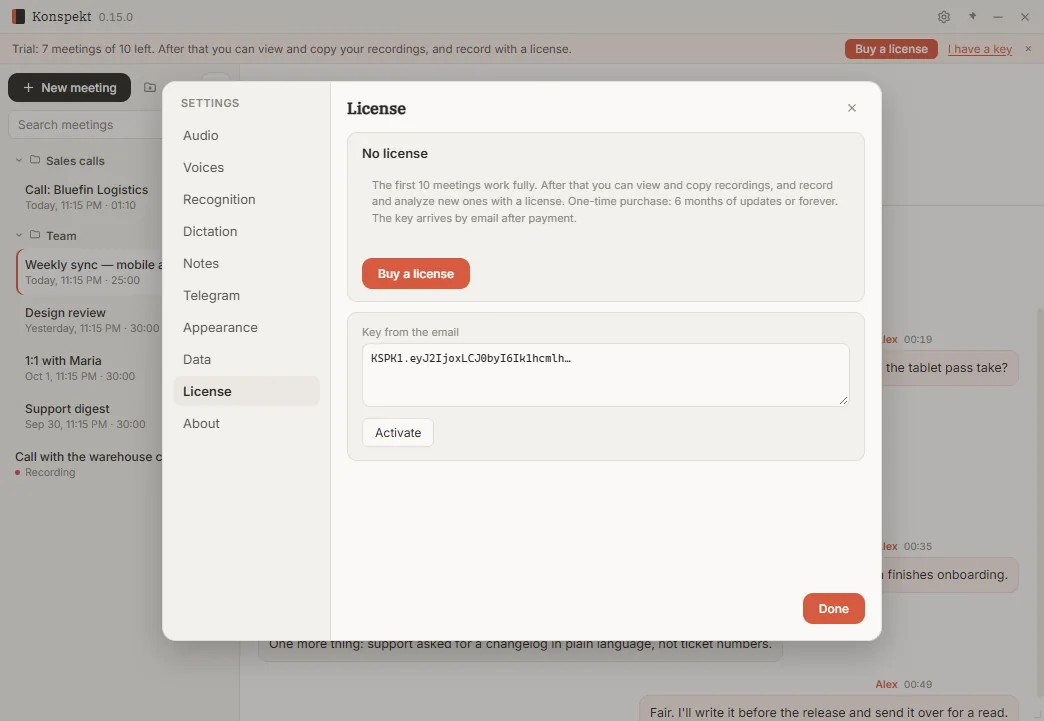
Your first 10 meetings get the full app. After that, every recording stays: you can view, search and copy it, and recording new meetings needs a license. You buy it once: 6 months of updates or lifetime.

How to

  1. A bar under the window title shows how many trial meetings are left.
  2. “Buy a license” opens the purchase page; the key arrives by email.
  3. Paste the key into “Settings” → “License” and click “Activate”. The key is checked on your computer, without the internet.
The License section: a field for the key from the email

Dark theme and zoom

Light, dark or follow Windows. The whole interface can be made larger or smaller.

How to

  1. Theme and zoom are in “Settings” → “Appearance”.
  2. Zoom from 70% to 200%: Ctrl and the mouse wheel, Ctrl + plus or minus; Ctrl + 0 resets.
Konspekt in dark theme: meeting notes

Try it on your own meetings

Your first 10 meetings are unlimited. Windows 10 and 11, no graphics card needed. Screenshots taken in version 0.15.0.

Buy a license

Recording business calls from your phone system? See how Konspekt handles them on ingdg.com